

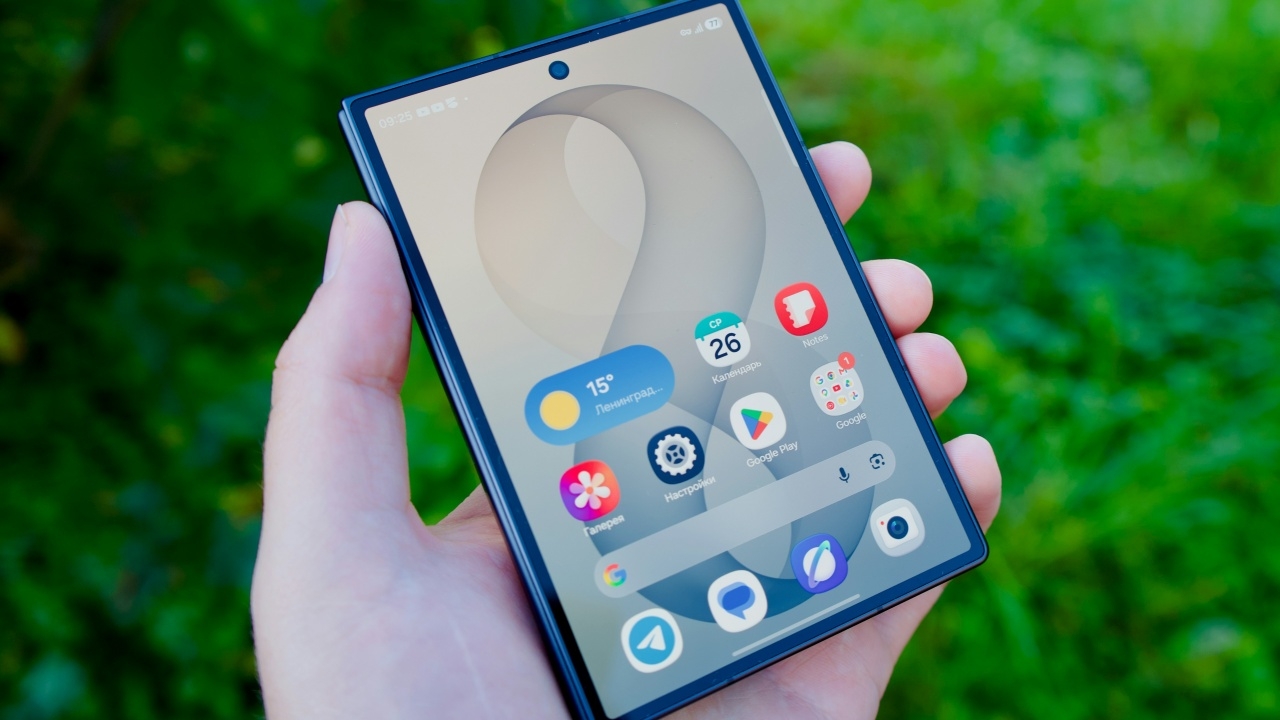
If your Android smartphone's battery seems to drain suddenly even though you haven't used it, check carefully. This may be caused by the tap-to-wake setting, which can cause the screen to light up by itself and thus drain the battery.
The location of the Tap-to-wake setting varies by smartphone model. For example, on Samsung Galaxy phones, go to Settings, select Advanced features, then Motions and gestures, and turn off the switch for Double tap to turn on screen.
However, some Samsung models label this as Double tap to wake up, and you should also disable Lift to wake on the same page. Then go back to Settings, select Display, and enable Accidental touch protection. Samsung's support page states this function prevents the screen from lighting up when the device is in dark places like pants pockets or bags.
For OPPO users, go to Settings, select Special Features, then Gestures & Motions, and choose Screen-off Gestures. Turn off the overall switch for gestures while the screen is off or just disable the double-tap to wake. This menu also includes other gestures like drawing letters to open the camera or flashlight, which might be triggered accidentally in pockets as well.
For vivo smartphones running Origin OS, go to Settings, select Shortcuts & Accessibility, then Smart Motion. This section includes all screen wake gestures such as double-tap and lift-to-wake. Disable only the options related to waking the screen.
For other Android smartphones, if you cannot find the menu, open Settings and use the search bar at the top. Type keywords like tap, wake, gesture, or pocket to go directly to the correct settings for your device.
After disabling, test if it worked by putting on thin fabric pants with the screen facing outward and walking normally for a while. Then observe if the screen still lights up by itself. Alternatively, check screen-on time statistics in the battery menu or built-in screen time tracker, and compare the numbers before and after disabling the feature.
However, disabling these functions means you can no longer view notifications by glancing at the screen. You might prefer to disable these features only when outside and re-enable them when at home.
/source:Android Police