

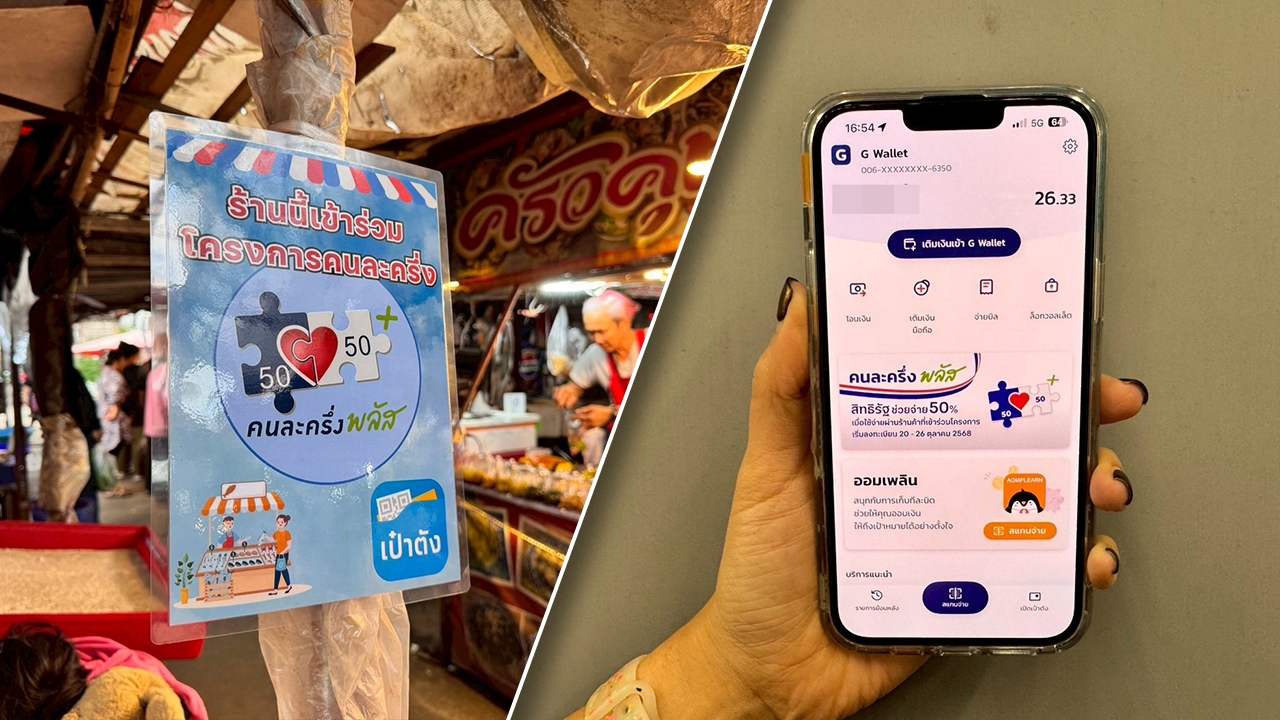
Co-Payment Phase 2: How to download the “Paotang” app and verify your identity to await the co-payment spending assistance of 2,000-2,400 baht at participating stores.
After the election concluded, Mr. Akniti Nitithanprapas, Deputy Prime Minister and Minister of Finance, revealed that the flagship policy “Co-Payment Plus” during the transitional period of forming an official government, while the current government continues to operate, as head of the economic team, he has ordered government agencies and state enterprises to accelerate disbursement of the 2026 budget. He also instructed the Board of Investment (BOI) to expedite investment by 80 BOI-approved projects totaling 480 billion baht, along with monitoring previously approved government projects such as measures to quickly close debts and credit bureau assistance for SMEs to maintain liquidity and support the 2026 economy.
Additionally, preparations have been made to launch short-term economic stimulus measures including: “Co-Payment Plus” Systems must be ready to operate immediately once the government is officially formed, maintaining the original principle of 2,000 baht for those outside the tax system and 2,400 baht for those within it. They are also considering whether to distribute benefits simultaneously or prioritize those missed in the first round, as well as the Thailand Individual Savings Account (TISA) to encourage savings.

According to the timeline for government formation, following the 8 Feb election, Anutin Charnvirakul projects the following:
In simple terms, Those awaiting “Co-Payment Plus Phase 2” funds may start using them around June or later.
However, looking back at the registration experience, “Co-Payment Plus” many faced issues and missed the chance to receive funds. “Co-Payment” Problems included inability to download the “Paotang” app due to incompatible mobile phones or unsuccessful identity verification in the “Paotang” app. Queues at banks were too long, causing many to miss their chance.
Therefore, since there is still some time, download the “Paotang” app and complete identity verification in advance to avoid missing out on receiving assistance funds to spend under the “Co-Payment” scheme at participating stores.
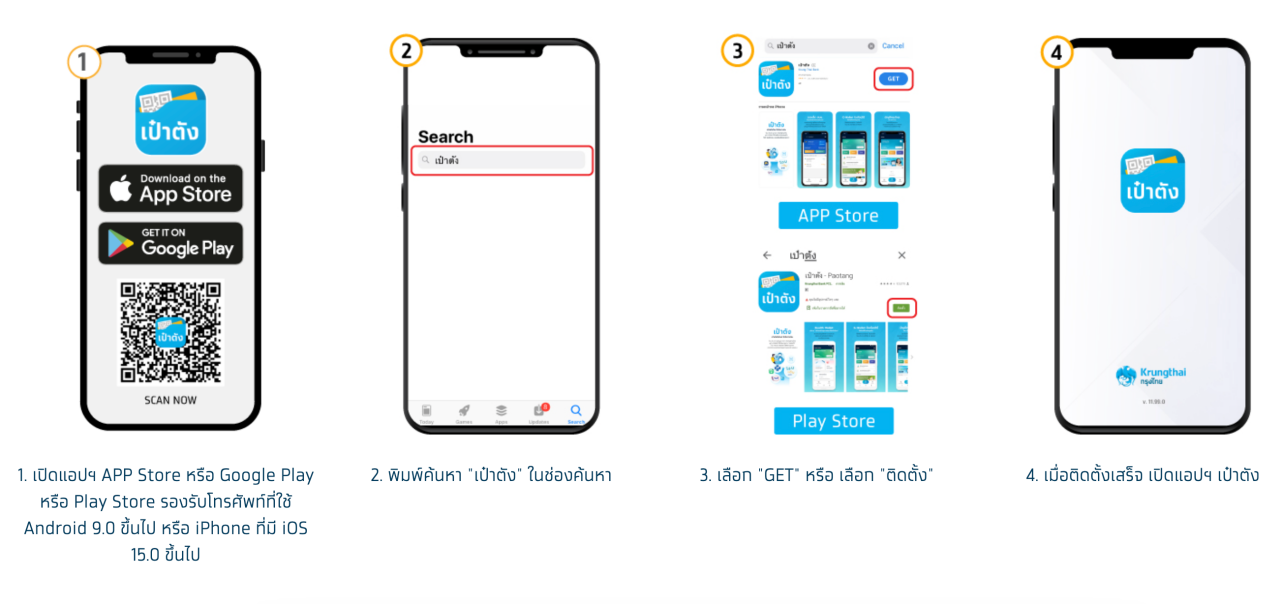
1. Open the App Store, Google Play, or Play Store. Supported devices: Android 9.0 or higher, or iPhone with iOS 15.0 or higher.
2. Search for "Paotang" in the search bar.
3. Select "GET" or "Install."
4. Once installed, open the Paotang app.
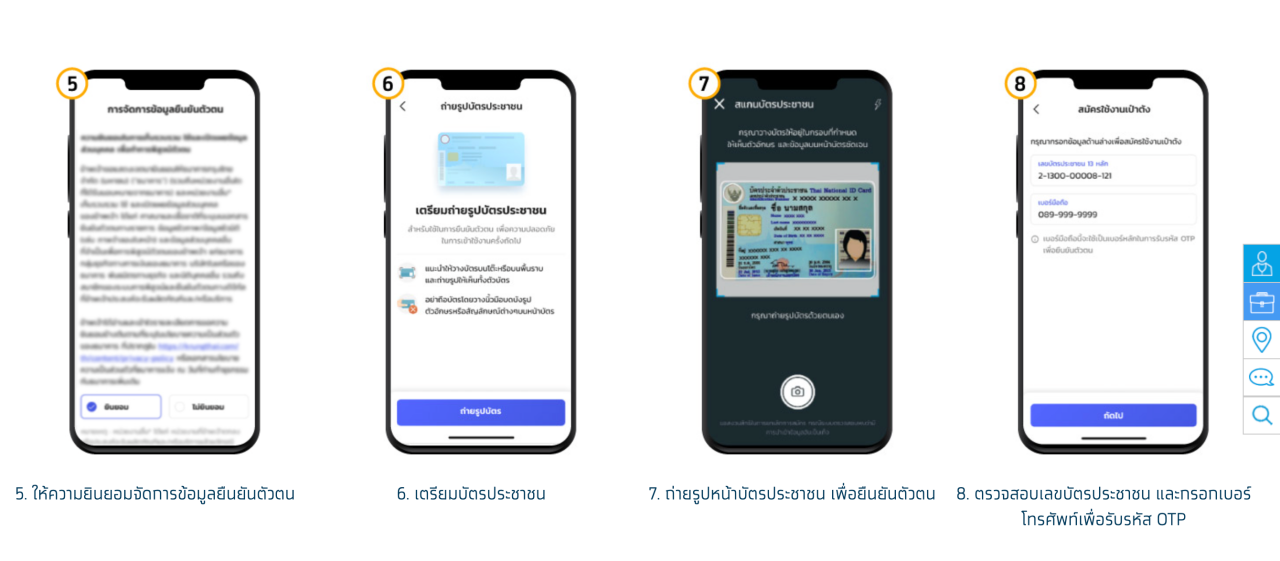
5. Consent to data management for identity verification.
6. Prepare your ID card.
7. Take a photo of the front of your ID card to verify your identity.
8. Confirm your ID card number and enter your phone number to receive an OTP code.
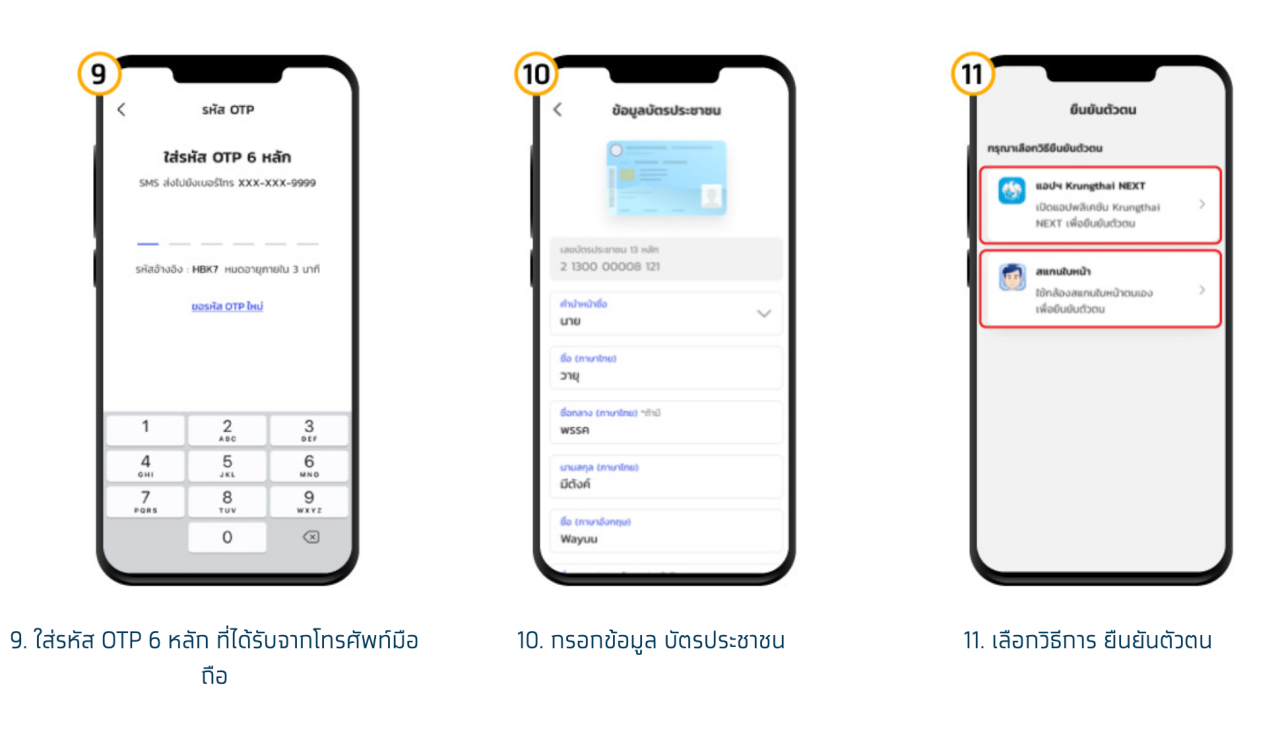
9. Enter the 6-digit OTP received on your mobile phone.
10. Fill in your ID card information.
11. Choose a verification method.
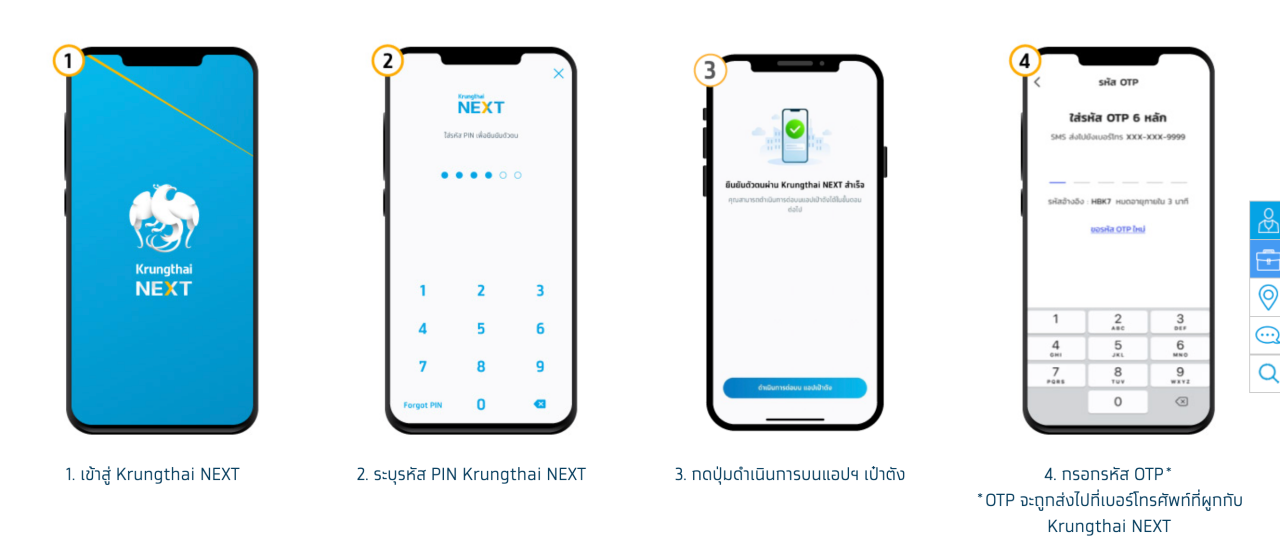
1. Log into Krungthai NEXT.
2. Enter your Krungthai NEXT PIN.
3. Tap the proceed button on the Paotang app.
4. Enter the OTP sent to the phone number linked to Krungthai NEXT.
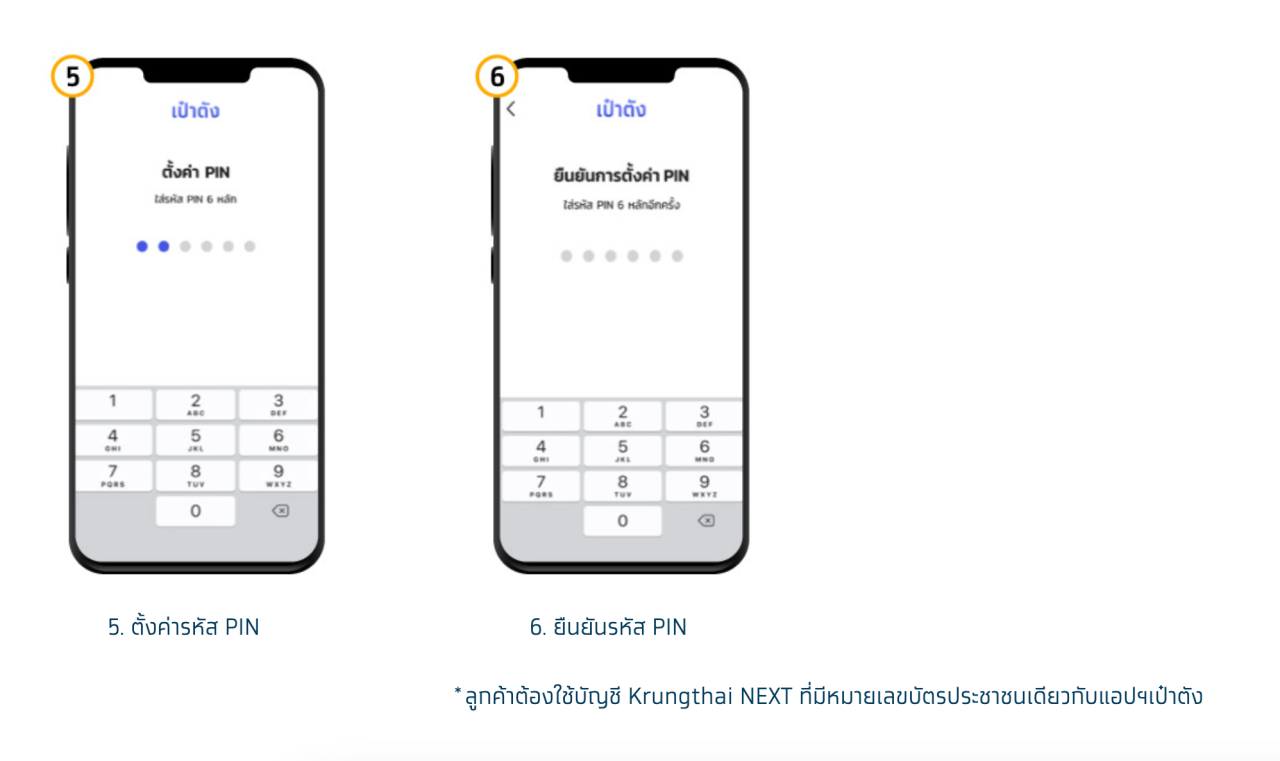
5. Set a PIN code.
6. Confirm the PIN code.
Applicants must use a Krungthai NEXT account registered with the same ID card number as the Paotang app.
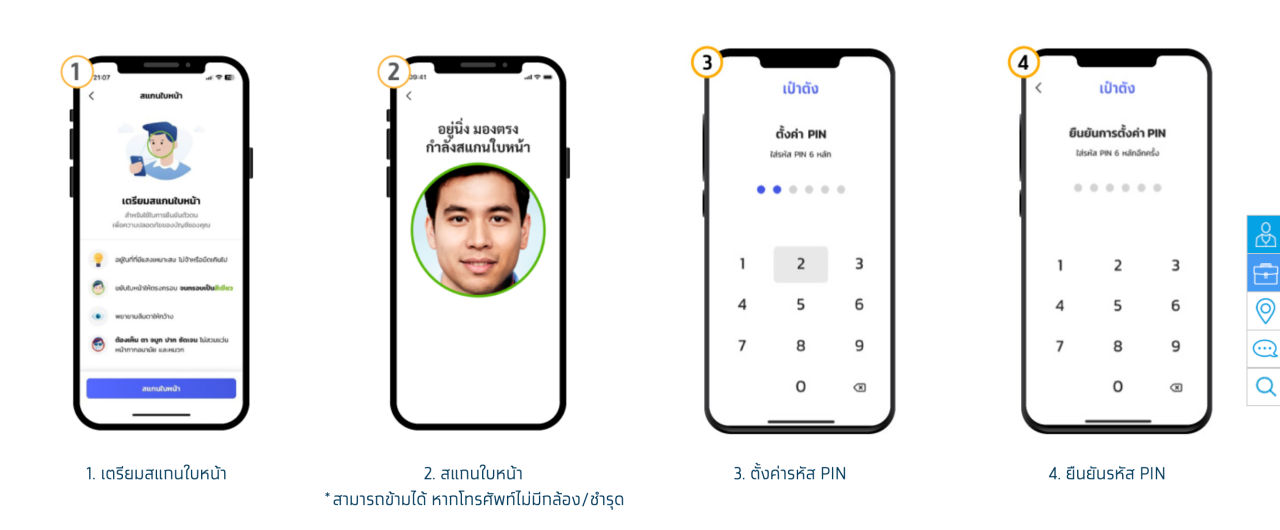
1. Prepare to scan your face.
2. Scan your face (can skip if the phone has no or broken camera).
3. Set a PIN code.
4. Confirm the PIN code.
5. Enable facial recognition or fingerprint scan.
6. Accept the Paotang app terms and conditions (mandatory for users).
7. The app will display only consent screens not previously answered, where you may agree or decline.
8. During data verification, a message will show "Verifying data" on the card.
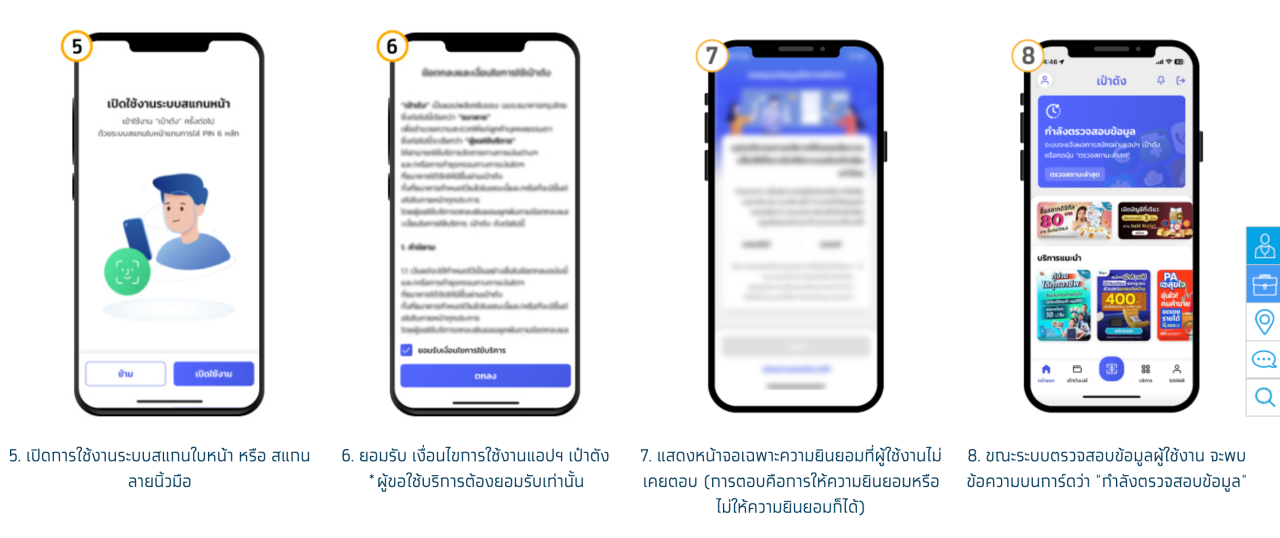
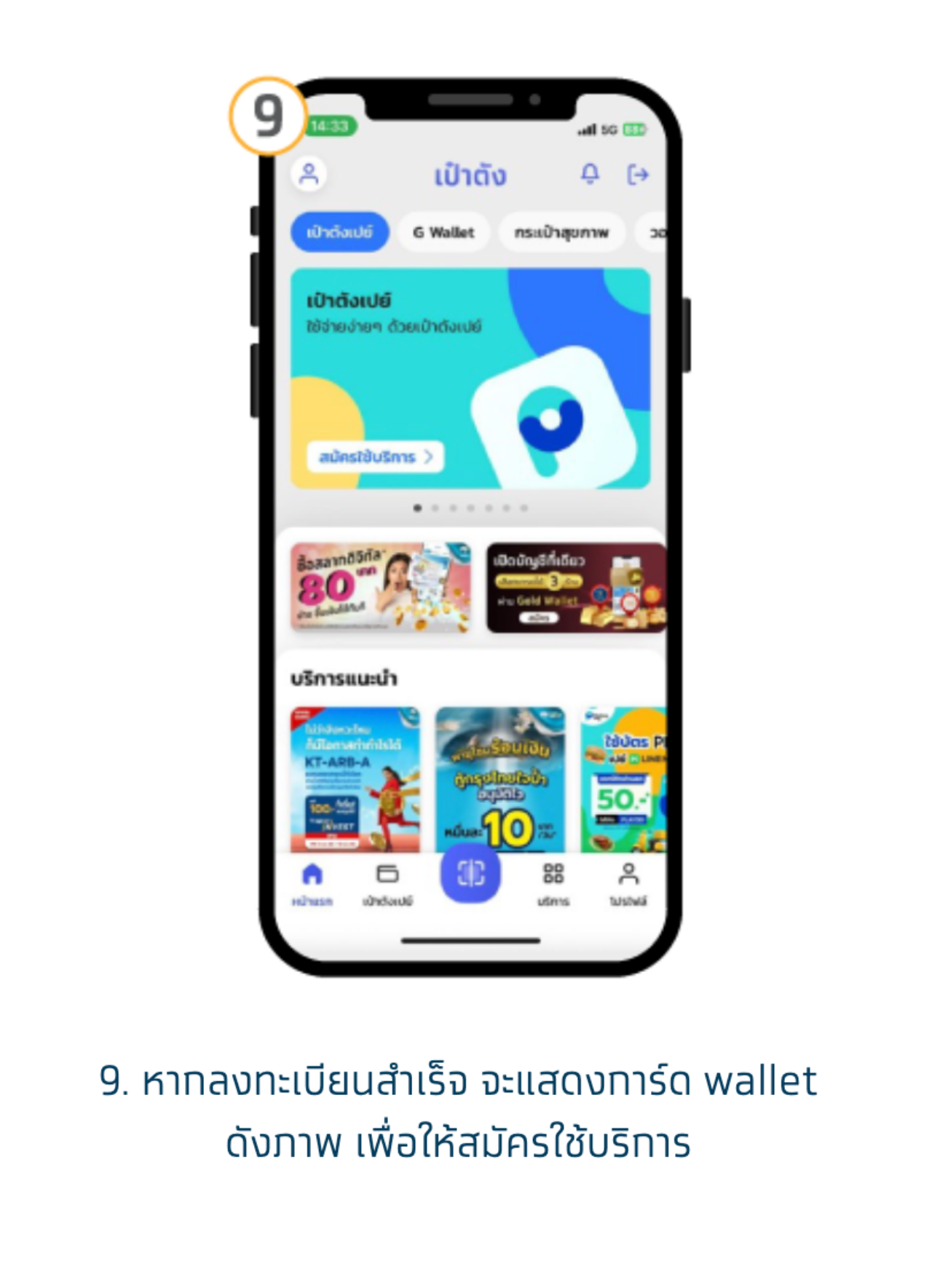
9. Upon successful registration, a wallet card appears as shown, allowing service registration.
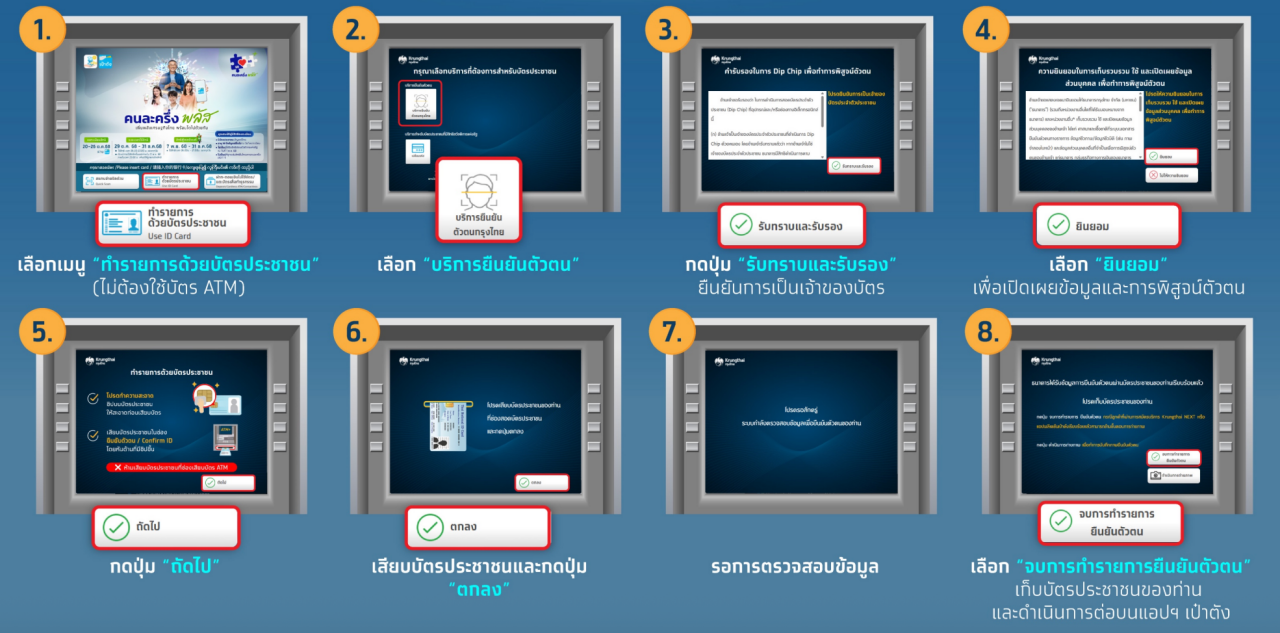
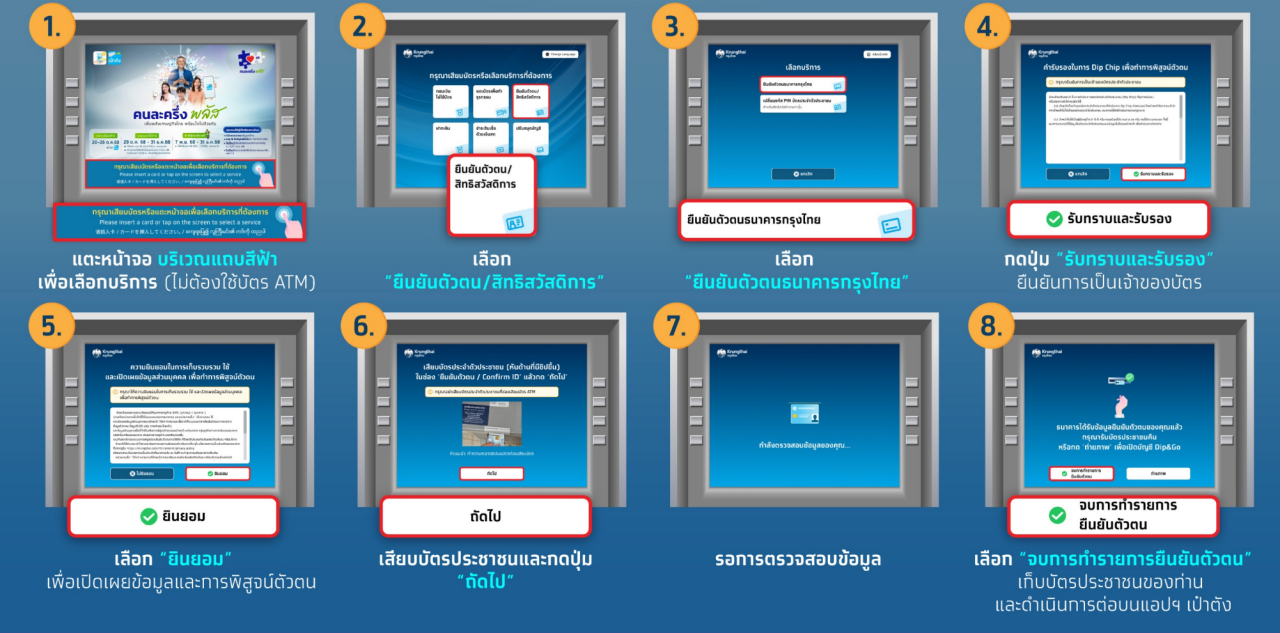
1. Tap the blue bar on the screen to select service (no ATM card needed).
2. Choose “Identity verification / State welfare card.”
3. Select Krungthai bank identity verification.
4. Press “Acknowledge and certify” to confirm card ownership.
5. Select “Consent” to disclose information and verify identity.
6. Insert your ID card and press “OK.”
7. Wait for data verification.
8. Select “Finish identity verification,” remove your ID card, and continue on the Paotang app.
For Phase 2 registration of those already granted Phase 1 benefits, it is initially expected that users will tap a banner to confirm their eligibility via the Paotang app, with official details pending government confirmation.